
Table of Contents
- Version History
- Introduction
- Saving and Loading for
PersistentObject - Deploying Save Points
- Adding a Save Indicator
- Displaying Save Slots in Game
- Configuring Settings and Debugging
- Bench API
- Credits
0. Version History
This section tracks the major updates and changes to the Bench Universal Save System.
Version 0.3.0 (17 September 2026)
- Added events
Bench.OnSaveBegin()andBench.OnSaveComplete()that users can hook onto to inject their own codes into the Bench save process. - Added a new Save Point component and 2 accompanying prefabs (wooden bench save point). This can be added onto any Scene and assigned a key so that any player in range will be able to save the game.
- Added new overloads
Find(string saveID)andReadAndFind(string saveID, int slot)to allow users to easily find save data on an object, even if you don't have aPersistentObjectreference. - Added a new
Bench.Write()function to allow saving and updating of data, even when there isn't aPersistentObjectreference. - When rendering objects of type
PersistentObject.SaveDataon the Inspector, the Save ID no longer renders. This is becausePersistentObjectalready renders its own Save ID on the Inspector. - Fixed various minor bugs on
Bench.QuickSave(),Bench.QuickLoadandPersistentObject.SaveData.ToString(). - Marked the array/target overloads of
Bench.QuickSaveAsync()as obsolete. They no longer run asynchronously and simply forward toBench.QuickSave(); useBench.SaveGameAsync()if you need an asynchronous write to disk.
Version 0.2.2 (9 April 2026)
- Fixed the user guide PDF being empty in the asset pack.
Version 0.2.1 (6 March 2026)
- Fixed an issue where the Bench Save window was not able to create a Bench Settings file for you when you clicked on the button.
- If you fail to create a new Bench Settings file through the Bench window, it now shows you an error message to tell you what's wrong.
- It is now possible to create new Bench Settings files in the Project window through Right-click > Create > Bench Universal Save System > Settings.
- Added a new error notification that shows up on the Bench Settings Inspector if you have multiple Bench Settings file in your project. This notification comes with a button that automatically helps you to delete the file as well.
Version 0.2.0 (27 February 2026)
- Overhauled the user guide to make it easier to understand.
- Added Inspector notification that shows up when you are reading a save slot with corrupted data.
- Added new functions
Bench.Read()andBench.ReadAndFind()to make it easy to read data on individual PersistentObjects. - Added a new
Bench.QuickLoad()overload that loads only a single PersistentObject. - Added a
Bench.ReadSaveFile()function that loads a save file without saving it into the cache. - Improved display of saved data on the Bench Universal Save System Inspector window.
- Every PersistentObject now shows any saved data that it has when it is selected. This will make it much easier to review saved data.
Version 0.1.0 (20 October 2025)
- Initial release of the Bench Universal Save System
- Core save/load functionality with PersistentObject class
- Multiple save slot support
- Native Save UI Canvas with customizable slots
- Save indicator UI element
- Async save/load operations
- Quick save/load for cached data
1. Introduction
The Bench Universal Save System is a Unity Asset that was originally developed for the Creating a Metroidvania (like Hollow Knight) tutorial series by Terresquall. Because the Save System got very complicated and robust, we thought that it would be a good idea to turn it into a Unity Asset instead.
Because of the complexity of setting up a saving system in a video game, we wanted to create an asset that is very easy to set up, so that you can get the system up and running as quickly as possible.
a. The 5-Minute Summary
Bench is a save system that is designed to be easy to set-up and use. To begin using Bench to save your data:
- Have your script inherit from
Terresquall.PersistentObjectinstead ofUnityEngine.MonoBehaviour.using Terresquall; using UnityEngine; public class MyUnityScript :
MonoBehaviourPersistentObject { ... }
- This will introduce a Save ID attribute to your component. Once this attribute is filled up, your objects will automatically be saved whenever you call
Bench.SaveGame().
Component with a successfully generated SaveID attribute
- Whenever you call
Bench.SaveGame()in your code, all components inheriting fromPersistentObjectwith an assigned Save ID attribute will automatically be saved. If you would like to save to different slots, useBench.SaveGame(slotNumber), whereslotNumberis any integer. If you do not specify a slot, the game automatically saves to slot 0.Bench.SaveGame(); // Saves game to slot 0. Bench.SaveGame(2); // Saves game to slot 2.
- To load a game, call
Bench.LoadGame()when an existing Scene is running. This will cause Bench to load saved data into all components that have Save IDs corresponding to the data in the save file. To load data from a specific slot, specify the slot number just like you would when you are saving, withBench.LoadGame(slotNumber).Bench.LoadGame(); // Load game data from slot 0. Bench.LoadGame(2); // Load game data from slot 2.
- As of Version 0.3.0, you can also use the Save Point prefabs found in Prefabs/Save Points to allow your players to save without having to write any codes.
b. Defining Save Logic
Before you start testing out saving will start working, however, you will also need to specify how each of your objects are saved, which is covered in the next section.
2. Saving and Loading for PersistentObject
After inheriting your class from PersistentObject as shown above, you will need to implement 3 other things in your class before your saves start working.
- A nested
SaveDataclass that inherits fromPersistentObject.SaveDatato provide structure for the data that will be saved. - A
Save()method describing how data is stored in yourSaveDataobject, wheneverBench.SaveGame()is called. - A
Load()method describing how saved data fromSaveDatashould be restored back to your component whenBench.LoadGame()is called.
a. Basic Setup
Below is an example demonstrating this. The 3 items above are highlighted below:
using Terresquall;
using UnityEngine;
public class Player : PersistentObject {

    public int health;
    public int maxHealth;
    public int level;

    // Other code...

    // Defines what are the variables in the save object of this class.
    [System.Serializable]
    public new class SaveData : PersistentObject.SaveData {
        public int health;
        public int maxHealth;
        public int level;
    }

    // Defines how the variables will be saved into SaveData.
    // If the save is successful, we must return the SaveData object.
    public override PersistentObject.SaveData Save() {

        if (CanSave()) {
            // We want to save the level, maxHealth and position, not the current health.
            return new SaveData
            {
                saveID = saveID, // You always need to save the save ID.

                health = health,
                maxHealth = maxHealth,
                level = level
            };
        }

        return null;
    }

    // Defines how the variables will be loaded into our object.
    // Return true if data is successfully loaded, or false otherwise.
    public override bool Load(PersistentObject.SaveData data) {
        if (data == null) return false;

        health = data.health;
        level = data.level;
        maxHealth = data.maxHealth;

        return true;
    }
}
b. Saveable Data
Note that because of the way persistent data (i.e. save data) works, not all variable types can be saved. This is not something that our asset can control — it isn't even something that Unity or Microsoft can fully-control, as there are differences in the way persistent data is stored compared to the way component data is stored.
Because of the complexity behind saving, it is also difficult to provide a list of all saveable types. For starters, all C# types that support literals can be saved without issue: bool, byte, sbyte, short, ushort, int, uint, long, ulong, char, float, double, decimal, string.
Any custom type (i.e. classes or structs) that has the [System.Serializable] attribute can also be saved, although most common Unity components such as Transform, GameObject and Rigidbody cannot be saved.
To save Unity components or objects, you will need to define and extract the values that you want to save.
using Terresquall;
using UnityEngine;
public class Ball : PersistentObject {
    Rigidbody rb; // We cannot store the whole Rigidbody.

    // Other code...

    [System.Serializable]
    public new class SaveData : PersistentObject.SaveData {
        // Store the Rigidbody's mass and gravityScale.
        public float mass;
        public float gravityScale;
    }

    public override PersistentObject.SaveData Save() {

        if (CanSave()) {
            return new SaveData
            {
                saveID = saveID, // You always need to save the save ID.
                mass = rb.mass,
                gravityScale = rb.gravityScale
            };
        }

        return null;
    }

	public override bool Load(PersistentObject.SaveData data) {
        if (data == null) return false;

        rb.mass = data.mass;
        rb.gravityScale = data.gravityScale;

        return true;
    }
}
c. Using C# Properties
If the method above is cumbersome for you, you can also use C# properties to make it easier to handle your Save() and Load() functions:
using Terresquall;
using UnityEngine;
public class Doodad : PersistentObject {


    // We want to save the position and rotation of the object,
    // but Vectors and Quarternions cannot be saved directly.
    // Hence, we need to break the values down into primitives.
    [System.Serializable]
    public new class SaveData : PersistentObject.SaveData {
        public float posX, posY, posZ;
        public float rotW, rotX, rotY, rotZ;

        // We will use properties to make assignment easier.
        public Vector3 position {
            get { return new Vector3(posX, posY, posZ); }
            set {
                posX = value.x;
                posY = value.y;
                posX = value.z;
            }
        }

        public Quaternion rotation {
            get { return new Quaternion(rotX, rotY, rotZ, rotW); }
            set {
                rotW = value.w;
                rotX = value.x;
                rotY = value.y;
                rotX = value.z;
            }
        }
    }

    public override PersistentObject.SaveData Save() {

        if (CanSave()) {
            return new SaveData
            {
                saveID = saveID, // Now saving is much easier.

                position = transform.position,
                rotation = transform.rotation
            };
        }

        return null;
    }

    // Defines how the variables will be loaded into our object.
    // Return true if data is successfully loaded, or false otherwise.
    public override bool Load(PersistentObject.SaveData data) {
        if (data == null) return false;

        transform.position = data.position;
        transform.rotation = data.rotation;

        return true;
    }
}
3. Deploying Save Points
After implementing PersistentObject in your scripts, calling Bench.SaveGame() in your code will automatically save your game to the 1st slot of Bench. If, however, you don't want to write your own code to create save points, the asset also comes with save point prefabs in the Prefabs/Save Points folder as of v0.3.0.
a. Setting up Save Points
To make use of any save point, simply drag one of the prefabs in the folder into your Scene.
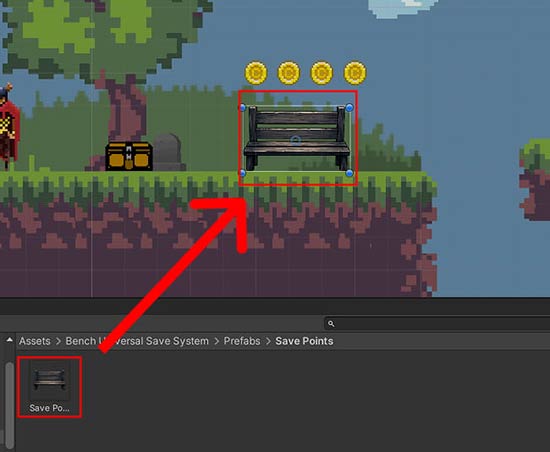
By default, the Save Points can be used once you drag them on the Scene. By default, a Save Point is triggered by any GameObject that is tagged Player. When in range, press E to activate the Save Point and create a save file.
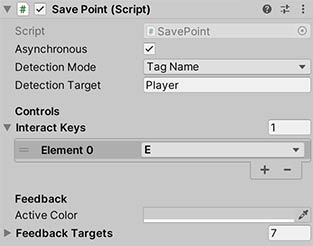
To modify the default settings, you can modify the properties on the Save Point component in the prefab. Notably, you can change the key that activates the Save Point by changing the Interact Keys property on the component.
You can also change the Detection Mode to search for GameObjects with a specific component as well, instead of having it search for a specific tag name.
| Setting | Description |
|---|---|
| Asynchronous | If you uncheck this, whenever you save the game, the game will freeze until the saving is done. |
| Detection Mode | Works with Detection Target to determine which GameObjects, when in proximity with the Save Point, will activate the Save Point. |
| Detection Target | If the Detection Mode is Tag Name, this will work for all GameObjects with the tag name. Otherwise, it will work for all GameObjects that have a certain component. |
| Interact Keys | Which key(s) will trigger the Save Point when the player character is in proximity of the Save Point? |
| Active Color | By default, the Save Point will darken a little when a player character is in proximity to indicate that you can press a key to save. This sets the colour it will darken to. |
| Feedback Targets | All the GameObjects that will be tinted to Active Color when a player character is in range. |
b. Different Interfaces for Input
Note that depending on whether the new Input System is enabled on your project, you will get different interfaces for the Interact Keys field on the Save Point, as these 2 systems use different mechanisms to listen to user input.
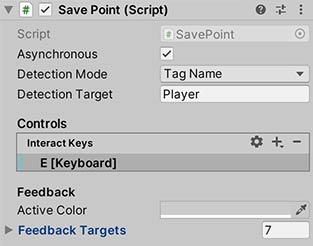
Additionally, if you want to trigger the save point via code, you can also get a reference to the Save Point component and call the Interact() function on it to trigger saving without a key press.
c. Extending the Save Point
You can also extend your own scripts with the SavePoint component to apply more specific customisation to your Save Points. To understand more, refer to our tutorial on adding Bench to Kailius.
4. Adding a Save Indicator
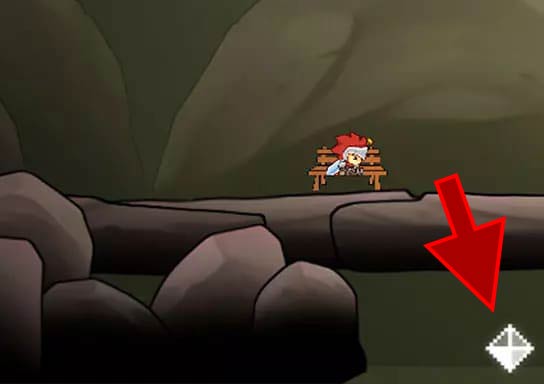
With a Save Point (or some other way of saving the game) set up, if you use asynchronous saving, you will want to make use of one of our Save Indicator prefabs.
a. The Drag-and-drop Save Indicator
To get your Save Indicator to work, simply drag a one of the Save Indicator prefabs in Prefabs/Save Indicators onto a Canvas in your Scene, and it will start working.
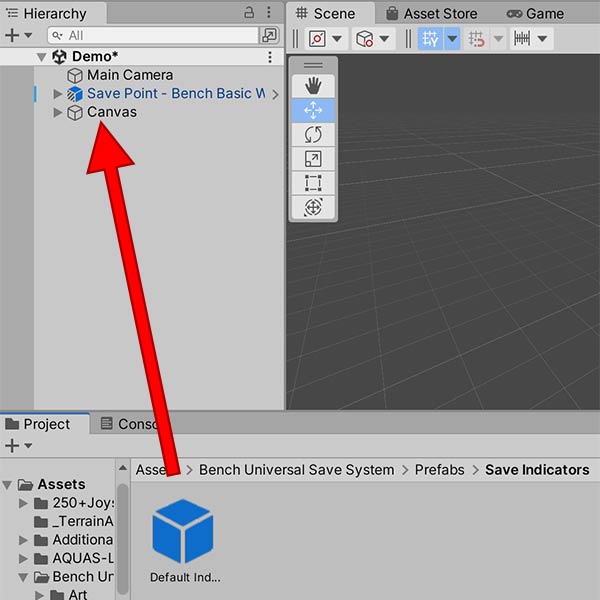
The Save Indicator will automatically hide itself when the game is playing, and only show up when the player saves the game.
b. Indicator Properties
The Save Indicator property has a few attributes that you can modify as well. You can modify the Fade Time property to control how long it takes for the indicator to appear, and Min Active Time how long the indicator should remain visible after it appears. This prevents the Save Indicator from popping in and out too quickly if the save completes quickly.

Because the save system automatically calls SaveIndicator.Toggle(true) when a save begins and SaveIndicator.Toggle(false) when it ends. No additional scripting is required as long as the prefab is in your scene and the Target is assigned correctly.
If you want to toggle the save indicator yourself, you can call the same SaveIndicator.Toggle() function listed above to show and hide the indicator.
5. Displaying Save Slots in Game
To display data in existing save slots in-game, you can use the prefabs in the Prefabs/Save Slots UI folder. Drag any one of them onto a Scene to begin using them.

a. Configuring the UI Save Slots
Before you begin to use the save slots, you are recommended to find the Save Slot Template GameObject within the prefab after dragging it out. There are a few settings you will need to adjust.
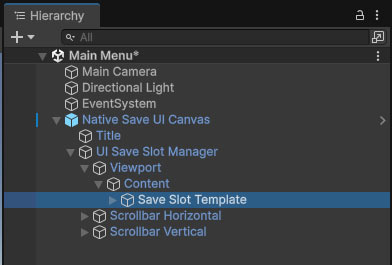
In the Save Slot Template GameObject, you should be able to find a component called UISaveSlot. Within it, there are a few settings you can adjust — the most important of these settings is the Default Scene property, which determines the Scene that is loaded by default when the slot is clicked on.

Once done, click on the Update Save Slots button, and the asset should automatically fill up the Scene GameObject with multiple save slots. 
Remember to add your main game scene into the Build Profile Scene List.
b. Setting the number of save slots
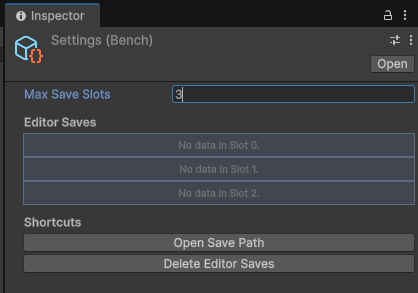
To control how many save slots your game accepts, go to Window > Terresquall > Bench Universal Save System to configure the asset's settings.
In the window, modify the Max Save Slots variable to control how many save slots are available. This will affect the number of save slots that are generated for the Save Slot UI prefab as well.
Next, in the UI Save Slot Manager component attached to the UI Save Slot Manager, click on the button Generate Save Slot Elements. This will create the specified number of Save Slot Template instances which duplicate all the settings from the original template.

With that, you have set up the UI and environment for saving to take place. To start a game and generate a new save, simply click on any of the UI save slots.
Do take note that you will have to call Bench.QuickLoad() after the data has been loaded into their respective PersistentObject instances. For optimisation, it's best to call the quick load function from async void Start() with a 100ms delay to ensure that all data is initialised.
6. Configuring Settings and Debugging
There are some universal settings for the asset that you can tweak by going to Window → Terresquall → Bench Universal Save System. The asset will create a ScriptableObject in your project that contains the save settings.

To help in viewing your saved data, you can access the Settings or the Bench Save System window and use the UI there to browse the data present in your save slots by clicking on View Save Data. This allows you to view all the variables and its values that you have saved which are categorised by their SaveID.
Here is an example of what you would be able to see when you choose to view a specified save slot's data:

To check the variables and values saved during gameplay testing, look out for a debug message "Quick save on slot [n]. Added data for the following:", this should show the most recent saved data and its variable names grouped by the script it was saved from.
To check if data was successfully loaded, look out for the debug message "Quick load on slot [n]. The following data was loaded:" with the same data shown in the save data debug message.
7. Bench API
The Bench class is the core of the save system. All of its methods are static, so you can call them from anywhere in your project. Below is a full reference of every public method, split into three groups.
a. Save & Load Functions
Besides Bench.SaveGame() and Bench.LoadGame(), Bench contains other functions that allow you to save and load data in different ways.
| Bench.SaveGame() | ||
|---|---|---|
Collects data from all active PersistentObject instances in the scene, then writes it to disk in the specified save slot. If no slot is given, saves to currentSlot. Pass reprocessSave = false to skip re-collecting scene data and write whatever is already in the cache. | ||
| Signatures | void SaveGame(bool reprocessSave) void SaveGame(int id = -1, bool reprocessSave = true) | |
| Parameters | id | The save slot to write to. Defaults to currentSlot when omitted or negative. |
| reprocessSave | When true, calls QuickSave() first to refresh the cache from the current scene. When false, writes whatever is already cached. | |
| Returns | void | |
| Example | // Save to the current slot, re-collecting all scene data. Bench.SaveGame(); // Save to slot 2 without re-collecting (write cached data as-is). Bench.SaveGame(2, false); | |
| Bench.SaveGameAsync() | ||
|---|---|---|
Asynchronous version of SaveGame(). Writes to disk without blocking the main thread. Automatically toggles the SaveIndicator on at the start of the operation and off when it completes. | ||
| Signatures | async void SaveGameAsync(bool reprocessSave) async void SaveGameAsync(int id = -1, bool reprocessSave = true) | |
| Parameters | id | The save slot to write to. Defaults to currentSlot when omitted or negative. |
| reprocessSave | When true, refreshes the cache from the current scene before writing. When false, writes whatever is already cached. | |
| Returns | void | |
| Example | // Async save to the current slot, re-collecting all scene data. Bench.SaveGameAsync(); // Async save to slot 1 without re-collecting scene data. Bench.SaveGameAsync(1, false); | |
| Bench.QuickSave() | ||
|---|---|---|
Collects save data from PersistentObject instances and stores it in the in-memory cache. Does not write to disk. Pass a specific target or array of targets to update only those objects in the cache; omit it to refresh the cache from all active PersistentObject instances in the scene. | ||
| Signatures | SaveFile QuickSave(PersistentObject[] targets = null) SaveFile QuickSave(PersistentObject target) | |
| Parameters | targets / target | The PersistentObject(s) to collect data from. When omitted or null, all active PersistentObject instances in the scene are used. |
| Returns | SaveFile — the updated in-memory cache. | |
| Example | // Snapshot all PersistentObjects into the cache. Bench.QuickSave(); // Snapshot only the player into the cache. Bench.QuickSave(player); // Snapshot a specific set of objects into the cache. Bench.QuickSave(new PersistentObject[] { player, chest, door }); | |
| Bench.QuickSaveAsync() (Obsolete) | ||
|---|---|---|
| These overloads are marked If you want the cache refreshed without blocking, use | ||
| Signatures | [System.Obsolete] SaveFile QuickSaveAsync(PersistentObject[] targets = null) [System.Obsolete] SaveFile QuickSaveAsync(PersistentObject target) | |
| Parameters | targets / target | The PersistentObject(s) to collect data from. When omitted or null, all active PersistentObject instances in the scene are used. |
| Returns | SaveFile — the updated in-memory cache, returned immediately (not wrapped in a Task). | |
| Example | // Not recommended — this call is fully synchronous despite its name. #pragma warning disable 618 SaveFile cache = Bench.QuickSaveAsync(); #pragma warning restore 618 // Prefer this instead: SaveFile cache2 = Bench.QuickSave(); | |
| Since | Deprecated in v0.3.0. | |
| Bench.Write() | ||
|---|---|---|
Directly inserts or overwrites a SaveData entry in the in-memory cache under a given save ID. Useful for saving data for objects that aren't currently a PersistentObject in the Scene (e.g. procedurally generated or already-destroyed objects), since it only needs a save ID and a SaveData object rather than a live reference. | ||
| Signature | bool Write(string saveID, PersistentObject.SaveData data) | |
| Parameters | saveID | The save ID to write the entry under. The saveID field on data is overwritten to match this value. |
| data | The SaveData object to insert or overwrite in the cache. | |
| Returns | bool — true if the entry was written, or false if saveID was null/empty or data was null. | |
| Example | // Manually save data for an object that no longer exists in the Scene. PersistentObject.SaveData chestData = new PersistentObject.SaveData(); // ...populate chestData fields... Bench.Write("chest_042", chestData); // The entry can now be found and will be included in the next SaveGame(). PersistentObject.SaveData found = Bench.Find("chest_042"); | |
| Since | v0.3.0 | |
| Bench.FormatSave() | ||
|---|---|---|
Serialises a SaveFile into a MemoryStream ready to be written to disk. Also populates the file's metadata (timestamp, playtime, scene name, etc.) and fires the OnFormatSave event, giving other scripts the opportunity to modify the data before it is written. | ||
| Signature | MemoryStream FormatSave(SaveFile file = null) | |
| Parameters | file | The SaveFile to serialise. Defaults to the current in-memory cache when omitted or null. |
| Returns | MemoryStream containing the serialised save data, or null if no valid save file is available. | |
| Example | // Hook into OnFormatSave to inject custom metadata before writing. Bench.OnFormatSave += (SaveFile file) => { file.metadata["checksum"] = ComputeChecksum(file); }; // Serialise the current cache into a stream, then write it yourself. MemoryStream stream = Bench.FormatSave(); if (stream != null) { // Use the stream for custom upload or encryption logic. } | |
| Bench.LoadGame() | ||
|---|---|---|
Reads a save file from disk into the in-memory cache, then immediately calls QuickLoad() to apply the data to all matching PersistentObject instances in the current scene. Also sets currentSlot to the loaded slot so that subsequent saves go to the same slot. | ||
| Signature | SaveFile LoadGame(int id = 0) | |
| Parameters | id | The save slot to load from. Defaults to slot 0. |
| Returns | SaveFile — the loaded save data, or null if no save file exists for that slot. | |
| Example | // Load from the current slot when the scene starts. void Awake() { Bench.LoadGame(Bench.currentSlot); } // Load from a specific slot and check if it succeeded. SaveFile result = Bench.LoadGame(2); if (result == null) Debug.Log("No save found in slot 2."); | |
| Bench.QuickLoad() | ||
|---|---|---|
Applies data from the in-memory cache to PersistentObject instances in the scene. Does not read from disk — call LoadGame() or ReadSaveFile() first to populate the cache. Pass a specific target to restore only that object; omit it to restore all active PersistentObject instances. | ||
| Signatures | bool QuickLoad(PersistentObject[] targets = null) bool QuickLoad(PersistentObject target, StringBuilder debugOutput = null) | |
| Parameters | targets / target | The PersistentObject(s) to restore. When omitted or null, all active PersistentObject instances in the scene are restored. |
| debugOutput | (Single-target overload only) An optional StringBuilder to append debug information to during the load. | |
| Returns | bool — true if data was successfully applied, false if the cache is empty or no matching save data was found for the target. | |
| Example | // Apply cached data to all PersistentObjects in the scene. Bench.QuickLoad(); // Apply cached data to only the player object. Bench.QuickLoad(player); // Apply cached data with debug output collected into a StringBuilder. StringBuilder log = new StringBuilder(); Bench.QuickLoad(player, log); Debug.Log(log.ToString()); | |
| Bench.ReadSaveFile() | ||
|---|---|---|
Deserialises and returns the SaveFile for the given slot directly from disk, without applying any data to scene objects. Useful for inspecting save data without disturbing the current game state. | ||
| Signature | SaveFile ReadSaveFile(int slot) | |
| Parameters | slot | The save slot to read from disk. |
| Returns | SaveFile — the deserialised save data, or null if the file does not exist or cannot be read. | |
| Example | // Read slot 2 from disk to inspect its data without loading it.
SaveFile file = Bench.ReadSaveFile(2);
if (file != null) {
foreach (var entry in file.data)
Debug.Log(entry.saveID);
} | |
| Bench.Delete() | ||
|---|---|---|
| Permanently deletes the save file for the specified slot from disk and clears the in-memory cache. | ||
| Signature | bool Delete(int id) | |
| Parameters | id | The save slot to delete. |
| Returns | bool — true if the file was successfully deleted, false if it did not exist or could not be removed. | |
| Example | // Delete save slot 1 and confirm success.
bool deleted = Bench.Delete(1);
if (deleted) Debug.Log("Slot 1 cleared.");
else Debug.LogWarning("Could not delete slot 1."); | |
b. Utility Functions
Besides saving and loading, the main Bench class also contains a variety of functions that can be used to perform various tasks, including (but not limited to) checking for the presence of save data on specific Persistent Objects, peeking for save metadata, or finding objects matching a specific Save ID.
| Bench.Find() | ||
|---|---|---|
Searches the in-memory cache for the SaveData entry matching a given PersistentObject or save ID. | ||
| Signatures | PersistentObject.SaveData Find(PersistentObject p) PersistentObject.SaveData Find(string saveID) | |
| Parameters | p | The PersistentObject whose save data you want to locate. |
| saveID | The save ID to look up directly, without needing a live PersistentObject reference. | |
| Returns | PersistentObject.SaveData — the matching entry, or null if none is found. | |
| Example | // Check the cache for existing save data for the player. PersistentObject.SaveData data = Bench.Find(player); if (data != null) Debug.Log("Found cached data for: " + data.saveID); // Or look it up directly by save ID. PersistentObject.SaveData data2 = Bench.Find("player_001"); | |
| Since | v0.3.0 | |
| Bench.ReadAndFind() | ||
|---|---|---|
Reads the save file for a specific slot from disk and searches it for the SaveData entry matching a given PersistentObject or save ID — useful for inspecting a slot without changing currentSlot or the active cache. | ||
| Signatures | PersistentObject.SaveData ReadAndFind(PersistentObject p, int slot = 0) PersistentObject.SaveData ReadAndFind(string saveID, int slot = 0) | |
| Parameters | p | The PersistentObject whose save data you want to locate. |
| saveID | The save ID to look up directly, without needing a live PersistentObject reference. | |
| slot | The save slot to read from disk. Defaults to slot 0. | |
| Returns | PersistentObject.SaveData — the matching entry, or null if none is found. | |
| Example | // Read slot 2 from disk and find the player's entry without altering the cache. PersistentObject.SaveData slotData = Bench.ReadAndFind(player, 2); // Or look it up directly by save ID. PersistentObject.SaveData slotData2 = Bench.ReadAndFind("player_001", 2); | |
| Since | v0.3.0 | |
| Bench.PeekGame() | ||
|---|---|---|
| Reads only the metadata block from a save file on disk using a lightweight XML reader, without deserialising the full object data. Suitable for quickly reading information like the save timestamp or scene name to display in a save slot UI. | ||
| Signature | Dictionary<string, string> PeekGame(int id) | |
| Parameters | id | The save slot to peek at. |
| Returns | Dictionary<string, string> containing the metadata fields (time, playtime, version, unity_version, current_scene_name), or null if no save exists for that slot. | |
| Example | // Display save slot info in a menu without fully loading the file.
Dictionary<string, string> meta = Bench.PeekGame(1);
if (meta != null) {
slotLabel.text = meta["current_scene_name"] + " — " + meta["time"];
} else {
slotLabel.text = "Empty";
} | |
| Bench.GetCurrentSaveFile() | ||
|---|---|---|
Returns the SaveFile currently held in the in-memory cache. | ||
| Signature | SaveFile GetCurrentSaveFile() | |
| Returns | SaveFile — the current cache, or null if nothing has been saved or loaded this session. | |
| Example | // Inspect the active cache without triggering a new save or load.
SaveFile current = Bench.GetCurrentSaveFile();
if (current != null)
Debug.Log("Cache has " + current.data.Count + " saved objects."); | |
| Bench.SlotHasSave() / Bench.CountSaves() | ||
|---|---|---|
Helper methods for checking the state of save files on disk. SlotHasSave() checks whether a specific slot has a save file. CountSaves() returns the total number of save files present in the save directory. | ||
| Signatures | bool SlotHasSave(int slot) int CountSaves() | |
| Parameters | slot | (SlotHasSave only) The slot number to check. If negative, falls back to currentSlot. |
| Returns | SlotHasSave: bool — true if a save file exists for that slot.CountSaves: int — the total number of save files in the saves directory. | |
| Example | // Only load if a save actually exists for the slot. if (Bench.SlotHasSave(Bench.currentSlot)) Bench.LoadGame(Bench.currentSlot); // Display how many save files the player has. Debug.Log("You have " + Bench.CountSaves() + " save(s)."); | |
| Bench.GetSavePath() | ||
|---|---|---|
Returns file system paths for the save directory or a specific save file. The base directory is derived from Application.persistentDataPath. | ||
| Signatures | string GetSavePath() string GetSavePath(int slot) | |
| Parameters | slot | (Second overload only) The slot number whose file path you want. |
| Returns | string — the save directory path (no arguments), or the full path to a specific slot's save file. | |
| Example | // Log the save directory location. Debug.Log("Saves stored at: " + Bench.GetSavePath()); // Get the full file path for slot 0. string path = Bench.GetSavePath(0); Debug.Log("Slot 0 path: " + path); | |
| Bench.FindObject<T>() / Bench.FindObjects<T>() | ||
|---|---|---|
Unity-version-safe wrappers around FindObjectOfType / FindObjectsOfType, handling the API differences introduced in Unity 2023.1. Used internally by Bench to locate PersistentObject instances, but available for use in your own code. | ||
| Signatures | T FindObject<T>(bool includeInactive = false) where T : Object T[] FindObjects<T>(bool includeInactive = false) where T : Object | |
| Parameters | includeInactive | When true, inactive scene objects are included in the search. Defaults to false. |
| Returns | FindObject: the first scene object of type T, or null.FindObjects: an array of all scene objects of type T. | |
| Example | // Find the first Player in the scene, including inactive objects. Player p = Bench.FindObject<Player>(true); // Find all Enemy instances currently active in the scene. Enemy[] enemies = Bench.FindObjects<Enemy>(); | |
| Bench.FindObjectBySaveID() | ||
|---|---|---|
Searches all PersistentObject instances in the scene (including inactive ones) and returns the first one whose Save ID matches the given string. The generic overload casts the result to the specified type before returning. | ||
| Signatures | PersistentObject FindObjectBySaveID(string saveID) T FindObjectBySaveID<T>(string saveID) where T : PersistentObject | |
| Parameters | saveID | The Save ID string to search for. |
| Returns | PersistentObject (or T) — the matching object, or null if none is found. | |
| Example | // Find any PersistentObject with a specific Save ID. PersistentObject obj = Bench.FindObjectBySaveID("chest_room2_01"); // Find and cast directly to a known type. Chest chest = Bench.FindObjectBySaveID<Chest>("chest_room2_01"); if (chest != null) chest.Open(); | |
| Bench.IsSaving() | ||
|---|---|---|
Returns whether a save operation (SaveGame() or SaveGameAsync()) is currently in progress. Bench uses this internally to prevent overlapping save calls — if you call SaveGame() or SaveGameAsync() while a save is already running, the new call is ignored and a warning is logged instead. You can also check this flag yourself, for example to disable a "Save" button while a save is underway. | ||
| Signature | bool IsSaving() | |
| Returns | bool — true if a save is currently in progress, false otherwise. | |
| Example | // Disable the save button while a save is in progress.
saveButton.interactable = !Bench.IsSaving(); | |
| Since | v0.3.0 | |
c. Delegates
If you want to have finer control over the saving process, Bench also exposes a few delegates (C# events) that you can hook your own callbacks onto.
| Bench.OnFormatSave | ||
|---|---|---|
A hook that fires from inside Bench.FormatSave(), right after the save file's metadata has been populated but before it is serialised. Subscribe to this to inspect or modify the SaveFile (for example, to inject custom metadata such as a checksum) before it is written to disk. | ||
| Signature | public static event System.Action<SaveFile> OnFormatSave; | |
| Parameters | file | The SaveFile that is about to be serialised. Any changes made to it (e.g. to file.metadata) are reflected in the final saved output. |
| Returns | n/a (event) | |
| Example | // Inject a custom metadata field before every save is written.
Bench.OnFormatSave += (SaveFile file) => {
file.metadata["checksum"] = ComputeChecksum(file);
}; | |
| Since | v0.3.0 | |
| Bench.OnSaveBegin / Bench.OnSaveComplete | ||
|---|---|---|
OnSaveBegin fires just after the save cache has been prepared and formatted, right before Bench writes the file to disk. OnSaveComplete fires immediately after the write finishes. Both fire for SaveGame() and SaveGameAsync(), and both receive the SaveFile that was saved along with which kind of save it was. | ||
| Signature | public static event System.Action<SaveFile, Bench.SaveType> OnSaveBegin; public static event System.Action<SaveFile, Bench.SaveType> OnSaveComplete; | |
| Parameters | file | The SaveFile being written. |
| type | A Bench.SaveType value (SaveType.sync or SaveType.async) indicating whether SaveGame() or SaveGameAsync() triggered the event. | |
| Returns | n/a (events) | |
| Example | // Show a "Saving..." label while the write is happening.
Bench.OnSaveBegin += (file, type) => statusLabel.text = "Saving...";
Bench.OnSaveComplete += (file, type) => statusLabel.text = "Saved!"; | |
| Since | v0.3.0 | |
8. Credits
The following people at Terresquall have contributed to the development of this asset:
- Terence Pek: Creating the core asset and managing the project.
- Josiah Loh: Development of some additional features for the project.
- Giselle Phoon: Creating the asset icon and visuals.
- Zhengyu Li: Created tutorials featuring the asset.
Part of the Metroidvania tutorial series and maintained as a standalone asset for the Unity community.